Starting firmware on the core
On this page you create a firmware project, bring the ESP32 to Online state on the portal, and verify that the network part works. Sensors and heating logic will be added in the following steps.
The approach is built on the iDryer::Link facade. You describe the device with a single iDryer::Config structure, call link.begin() and link.loop() — the core handles all network connection itself.
1. Prepare the tools
You will need:
- VS Code with PlatformIO extension;
- USB cable;
- Wi-Fi network
2.4 GHz(ESP32 does not work with5 GHzonly networks); - a smartphone with the iDryer app (App Store, Google Play), signed in to your iDryer portal account: it gives the device the Wi-Fi network and links it to the account;
- the core library idryer-core;
- the ready-made project of this chapter — example/09-cabinet in the tutorial repository: it is the source of the sensor driver and the other files you will be asked to copy later.
For information on what controller firmware is and how it gets into the board — see Controller firmware.
2. Create a project
In PlatformIO a project is a folder with a fixed structure. Create a project folder (for example my-cabinet) and open it in VS Code. Inside should be these files:
my-cabinet/
├── platformio.ini        # build settings (fill in step 4)
├── lib/
│   └── idryer-core/      # core library (symlink or copy)
└── src/
    └── main.cpp          # device code: Config + setup() + loop()
All code fragments below go into these specific files — each step indicates which file. Create the include/, lib/ and src/ folders manually if they don't exist.
Place the idryer-core library in lib/ — PlatformIO automatically finds libraries there. The easiest way is to create a symlink to the downloaded library:
git clone https://github.com/pavluchenkor/idryer-core.git ~/idryer-core
ln -s ~/idryer-core lib/idryer-core
Instead of a symlink you can simply copy the library folder into lib/idryer-core — it works the same way.
This is also required for menu generation (chapter 6) — the hook looks for the generator inside lib/idryer-core/.
3. Wi-Fi and pairing are not in the code
The firmware contains neither the network password nor account data. On first start the device has no Wi-Fi and waits for settings: the iDryer app sends them over the air (ESPTouch) and then links the device to your account with a one-time pairing token. The core does all of this inside s_link.begin() and s_link.loop(), you only go through the steps in the app — section 9.
How the network gets into the device. A board with no saved network listens to the air, like a receiver not tuned to a station. Meanwhile the phone "taps out" the network name and password into the air — much like Morse code, only with Wi-Fi packets. The board catches this transmission, joins the network and from then on connects to it by itself at every power-on. No extra pins or wires are needed for this: it uses the board's own antenna, turns on by itself while there is no network, and lasts up to 90 seconds.
If it did not work over the air, there is a wired path: the web installer install.idryer.org passes the network and the pairing token to the board over USB — the same thing the app does, only through a cable. A plain reboot of the board also helps: after it the board waits for settings again.
4. Configure platformio.ini
Fill in platformio.ini in the project root:
[env:cabinet]
platform    = espressif32
framework   = arduino
board       = esp32-c3-devkitm-1

; The core's libraries (MQTT, ArduinoJson, WebSockets, Improv) come
; from lib/idryer-core/library.json by themselves.
; ESPAsyncTCP is the ESP8266 transport from espMqttClient's dependencies:
; it does not build on ESP32 and has to be excluded.
lib_ignore = ESPAsyncTCP

build_flags =
    -DIDRYER_API_BASE='"https://portal.idryer.org/api"'
    -DMQTT_BROKER='"mqtt.idryer.org"'
    -DMQTT_PORT=8883
    -DMQTT_USE_TLS=1
Replace board with your board (for example, esp32-s3-devkitc-1). You don't need to specify idryer-core in lib_deps — it's located in lib/ (step 2).
What these lines do
You don't list the core's dependencies: PlatformIO takes them from lib/idryer-core/library.json. lib_ignore = ESPAsyncTCP is required — without it the build fails in ESPAsyncTCP.cpp. The MQTT_BROKER and MQTT_PORT flags are also required — without them the core won't compile ('MQTT_BROKER' was not declared).
5. Describe the device in Config
Next, everything happens in one file — src/main.cpp. Open it and write the code from this and the following steps.
iDryer::Config is the device's passport. The has* flags tell the portal what the device has and determine which telemetry fields are published.
For a heated cabinet, add to the beginning of src/main.cpp:
#include <iDryer.h>

static const iDryer::Config CFG = {
    .deviceType        = iDryer::DeviceType::Unknown,   // your own device: the card is built by the manifest
    .unitsCount        = 1,
    .telemetryPeriodMs = 5000,
    .statusPeriodMs    = 10000,
    .hardwareVersion   = "1.0",
    .firmwareVersion   = "0.1.0",
    .model             = "DIY Storage Cabinet",
};

static iDryer::Link s_link(CFG);
has* flags are a contract with the portal
A telemetry field whose corresponding flag is false is not published. For example, without hasAirHumidity = true humidity won't be sent to the cloud, even if you write it in the code. Enable only what physically exists in the device.
For a complete list of components and flags — see System components.
6. Minimal main
In the same file after the Config block, add the setup() and loop() functions. For the first launch it's enough to initialize the link and run it in loop():
void setup() {
    Serial.begin(115200);
    s_link.begin();
    // The portal unlinked the device: erase the secret, wait for a new pairing.
    s_link.onCommand("revoke", [](JsonObjectConst) { s_link.handleRevoke(); });
}

void loop() {
    s_link.loop();
}
s_link.begin() brings up Wi-Fi, pairing and the connection to the portal. The revoke command comes from the portal when the device is unlinked from the account: handleRevoke() erases the device secret, and the device waits for a new pairing. We'll add sensors in the Sensors step.
Complete src/main.cpp after this chapter
Combine both blocks above into one file — this is the entire src/main.cpp at this stage:
#include <iDryer.h>

static const iDryer::Config CFG = {
    .deviceType        = iDryer::DeviceType::Unknown,   // your own device: the card is built by the manifest
    .unitsCount        = 1,
    .telemetryPeriodMs = 5000,
    .statusPeriodMs    = 10000,
    .hardwareVersion   = "1.0",
    .firmwareVersion   = "0.1.0",
    .model             = "DIY Storage Cabinet",
};
static iDryer::Link s_link(CFG);

void setup() {
    Serial.begin(115200);
    s_link.begin();
    // The portal unlinked the device: erase the secret, wait for a new pairing.
    s_link.onCommand("revoke", [](JsonObjectConst) { s_link.handleRevoke(); });
}

void loop() {
    s_link.loop();
}
Each chapter shows what to add and the complete src/main.cpp after changes, so you always see the full picture rather than scattered pieces.
7. Flash the firmware
8. Open Serial Monitor
Until the device has Wi-Fi, the log is silent: the core keeps the serial port for the web installer (Improv). Logs turn on as soon as Wi-Fi is up. On a device that has not been linked yet, the log ends like this:
[BOOT] WiFi ok, logs enabled
[INFO ] CLOUD: WiFi connected, IP: 192.168.1.42, RSSI: -55 dBm, …
…
[INFO ] CLOUD: binding-v3: no secret — awaiting pairing token (SETUP)
The last line is exactly what you need at this step: the network is there, there is no pairing secret, and the device is waiting for a token from the app. Leave the monitor open and go to the app.
9. Connect Wi-Fi and link the device in the app
- Connect the phone to the Wi-Fi network the device will use (
2.4 GHz) and sign in to the iDryer app with your portal account. - On the home screen, tap Connect a new device — the Wi-Fi step opens.
- Check the network name (the app fills it in when location access is on), enter the password and tap Connect device. The app sends the settings for up to 90 seconds; when the device joins the network, the app shows Device connected. Tap Next.
- On the Pairing step, tap Pair. The app finds the device on the network, gets a one-time pairing token from the portal, hands it to the device and waits until the portal confirms that the device is online.
- After Device paired, the device appears in the device list on the portal and in the app.
If the device is already on the network, open the Pairing step right away — tap its chip at the top of the window.
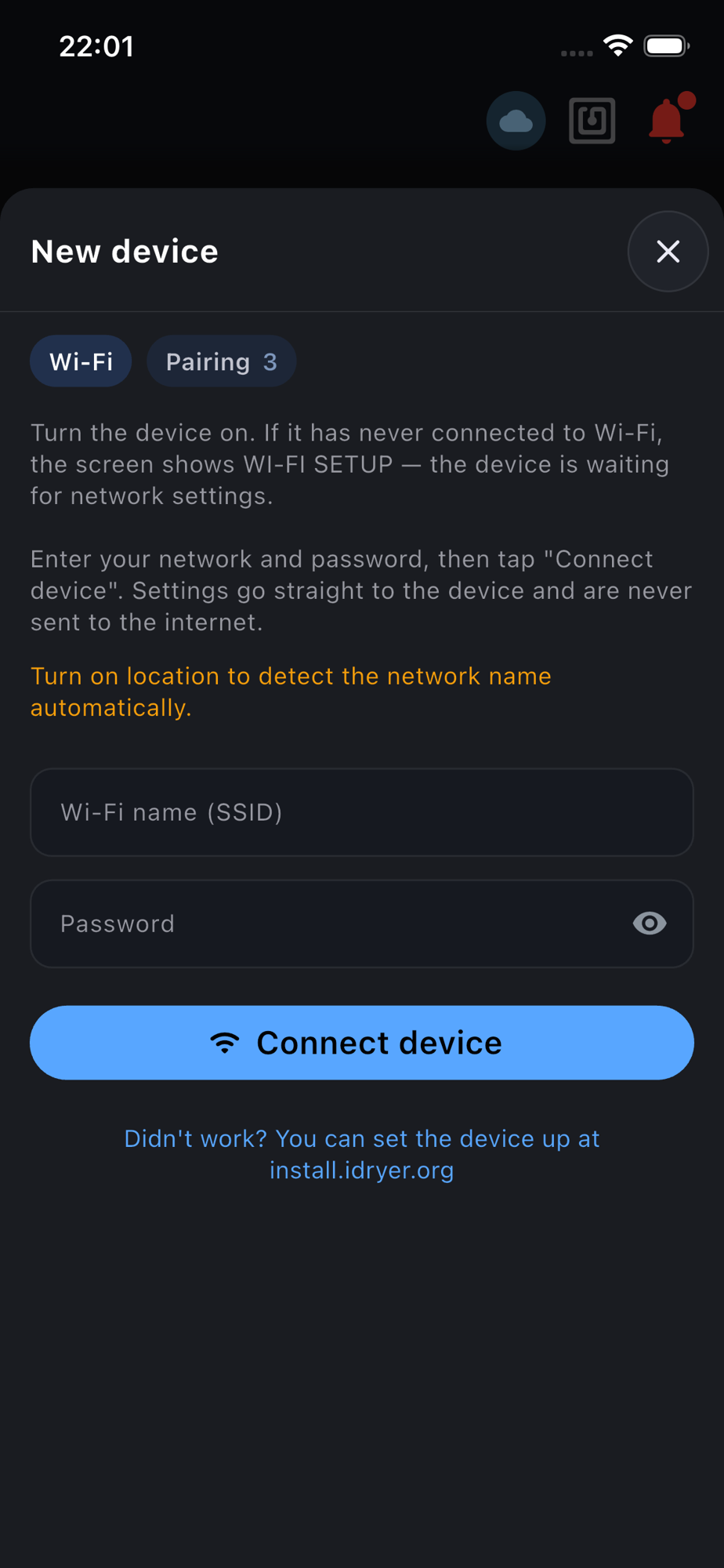 The Wi-Fi step: the app sends the network to the device over the air.
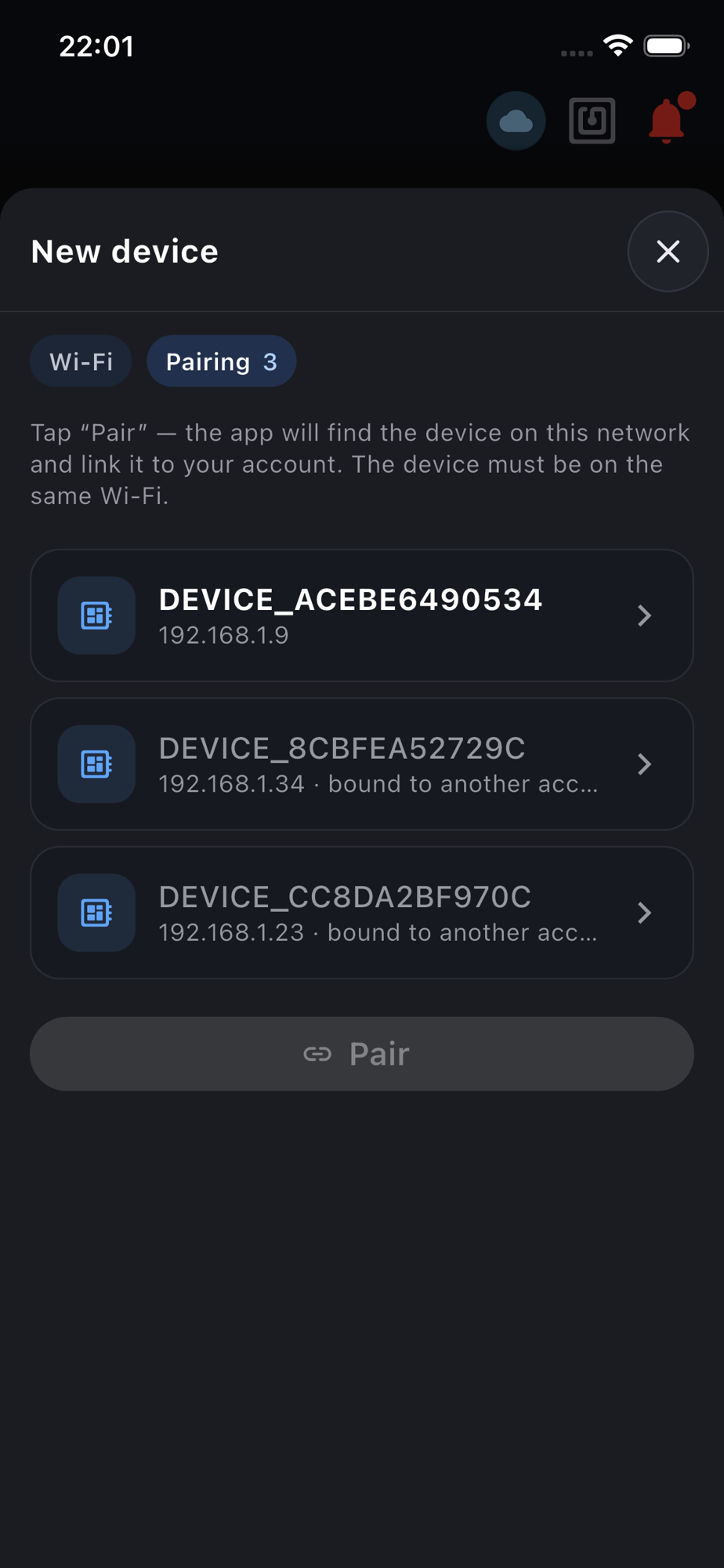 The Pairing step: the app has found the device on the network by its serial number. Devices owned by others are marked as taken.
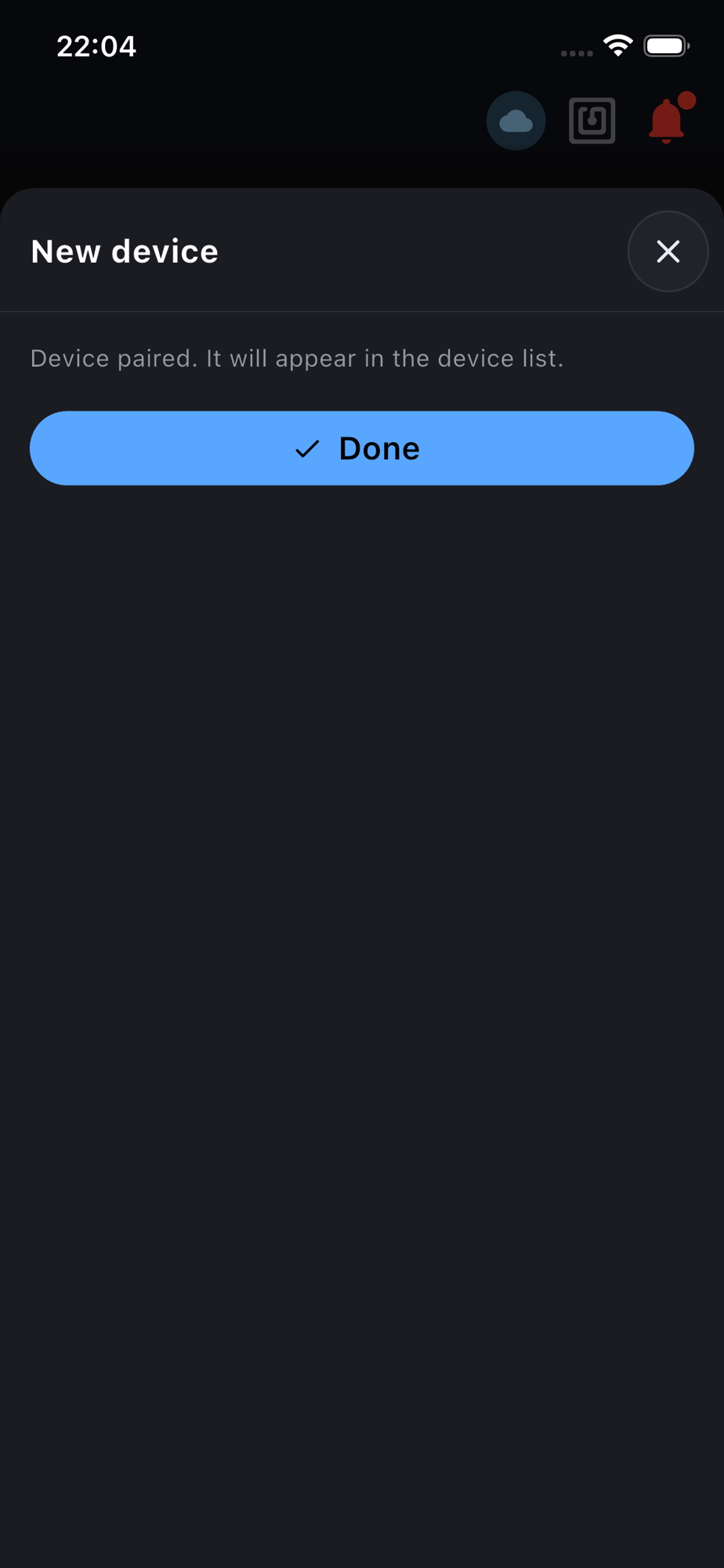 Done: the device is linked to the account and is about to appear in the list.
The log shows the pairing:
[INFO ] CLOUD: binding-v3: pairing token received (… chars)
[INFO ] CLOUD: binding-v3: activating with pairing token (serial=DEVICE_… mcu=-)
[INFO ] CLOUD: binding-v3: activated, deviceId=… -> Ready
…
[INFO ] MQTT: Connected! …
Verification
At this stage the device should be Online on the portal. There's no sensor data yet — this is expected: Config has not declared anything about sensors, and the card has nothing to show.
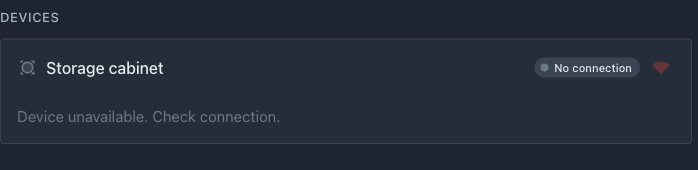 The device on the portal: name, Idle state, connection icon. There are no readings — they will appear in the next chapter.
The name Device DEVICE_… is the factory one. Rename the device with the pencil next to the name: in the examples that follow it is called "Storage cabinet".
If something went wrong:
- the app did not see the device join the network — check the password and that the network is
2.4 GHz; with a wrong password the device waits for settings again, reboot the board and repeat the Wi-Fi step; - the network is still not delivered over the air — do the same over USB with the web installer install.idryer.org;
- the app did not find the device on the Pairing step — the phone and the device must be on the same network, and the network must not block device discovery (guest networks often do);
- the device reboots — check the ESP32 power supply (voltage drops on startup are a common cause of resets);
- the build fails with an error — ask the community: Telegram, Discord;
- see Power mistakes and Controller mistakes.
What's next
The network part is working. Move on to Sensors: we'll connect the SHT31 and thermistor and see their data on the portal.