Home Assistant
Storage Link publishes itself to Home Assistant via MQTT Discovery: HA creates the entities on its own — temperature and humidity from the SHT31 sensor, effect selection, color and LED strip control buttons. The portal is not needed for this, everything goes through your MQTT broker.
Below: enabling the integration, verification and a ready-made card layout, so that the device looks tidy rather than a list of entities.
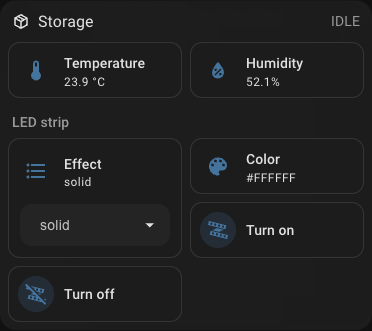 Sensor readings and LED strip control in a single block.
Note
The device will not appear in Settings → Devices & services → Discovered: this is MQTT Discovery, not UPnP/zeroconf. The MQTT integration in Home Assistant must be added in advance.
What you need
- An MQTT broker: the Mosquitto broker add-on in Home Assistant or any broker on your network.
- The MQTT integration added in Home Assistant, pointing to that broker.
- Storage Link on the network and
Onlineon the portal.
Step 1. Enable the integration on the device
Open the device at portal.idryer.org and find the Integrations → Home Assistant block.
| Field | What to enter |
|---|---|
| Host | the broker address on your network, for example 192.168.1.27 |
| Port | the broker port, usually 1883 |
| Username / Password | broker credentials, if it requires them |
| Discovery prefix | homeassistant, unless you changed it in the HA settings |
| Enabled | the checkbox — otherwise the device will not connect to the broker |
The settings go straight to the device over the local network — the portal does not store them.
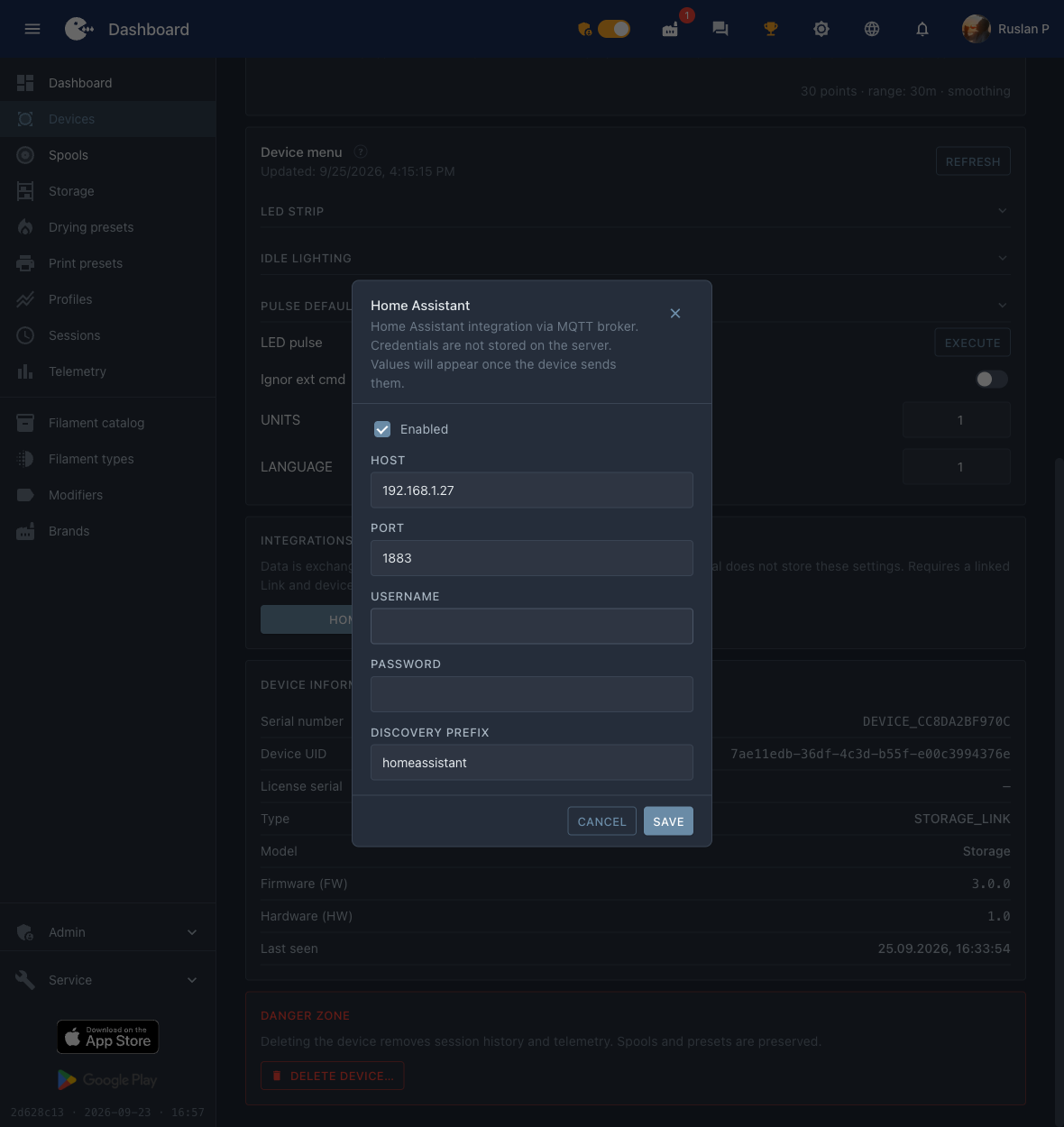 The broker address, port and the "Enabled" flag — everything the device needs.
Step 2. Find the device in Home Assistant
Settings → Devices & services → the MQTT card → in the Services section expand the broker node. iDryer devices are listed under serial numbers of the form DEVICE_*.
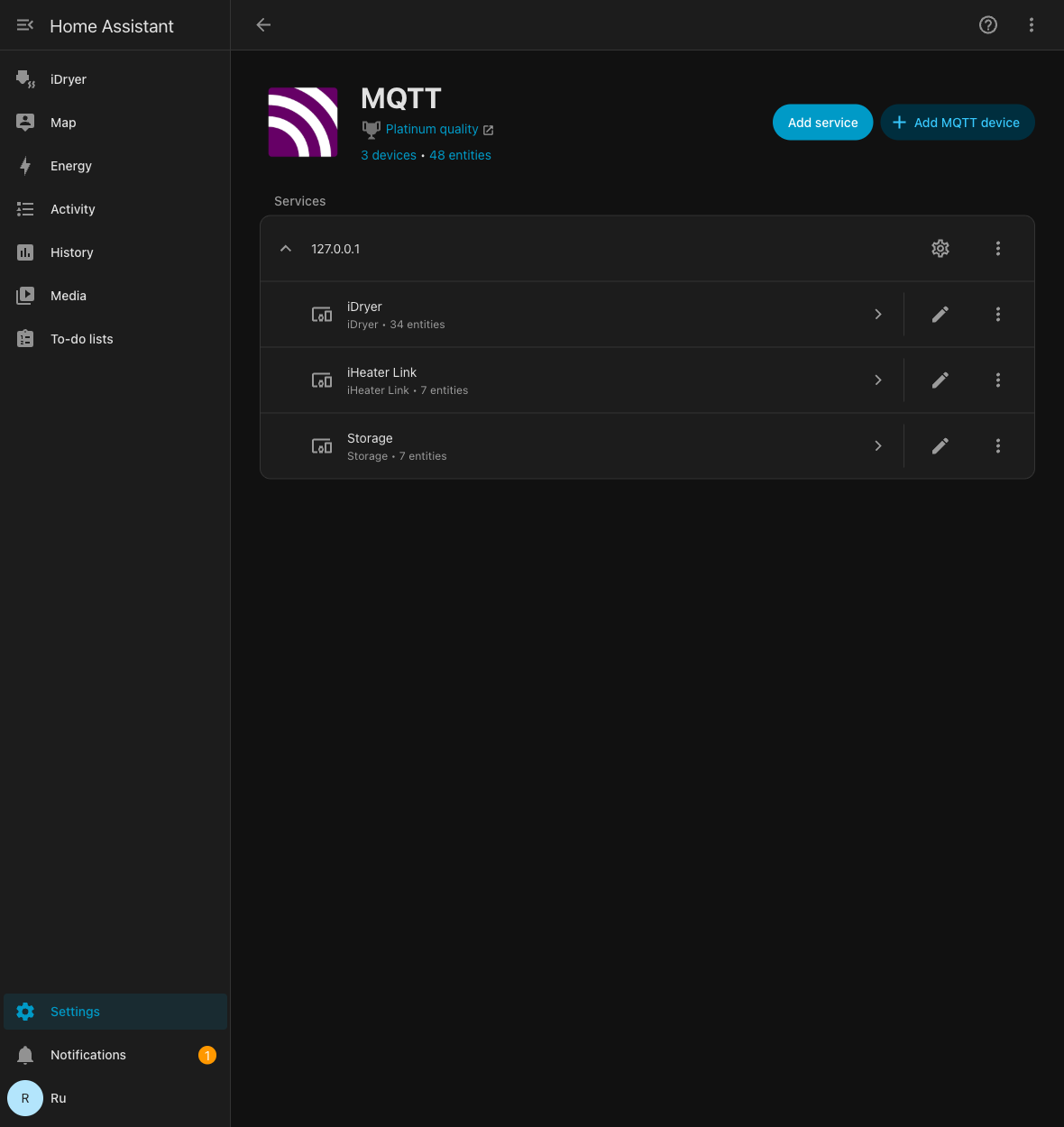 Devices under the broker node; the Storage shows its entity count.
Open the device: HA already shows the readings and the LED strip controls.
Step 3. Build the card
HA lays the entities out on its own, and the result is a long list. The ready-made layout puts the readings on top and the LED strip control in a separate block.
Settings→Dashboards→ Add dashboard → an empty dashboard, open it.- Top right corner → the pencil (Edit) → the "⋮" menu → Raw configuration editor.
- Paste the contents below and save.
The layout is designed for a dashboard of type sections.
title: iDryer
views:
- title: Devices
  path: devices
  type: sections
  max_columns: 4
  sections:
  - type: grid
    background: true
    cards:
    - type: heading
      heading: Storage Link
      heading_style: title
      icon: mdi:package-variant-closed
      badges:
      - type: entity
        entity: sensor.storage_mode
        show_icon: false
        show_state: true
        color: primary
    - type: tile
      entity: sensor.storage_temperature
      name: Temperature
      visibility:
      - condition: state
        entity: sensor.storage_temperature
        state_not:
        - unknown
        - unavailable
    - type: tile
      entity: sensor.storage_humidity
      name: Humidity
      visibility:
      - condition: state
        entity: sensor.storage_humidity
        state_not:
        - unknown
        - unavailable
    - type: heading
      heading: LED strip
      heading_style: subtitle
    - type: tile
      entity: select.storage_turn_on_effect
      name: Effect
      features:
      - type: select-options
      features_position: bottom
    - type: tile
      entity: text.storage_turn_on_color
      name: Color
      icon: mdi:palette
    - type: tile
      entity: button.storage_turn_on
      name: Turn on
      icon: mdi:led-strip-variant
      hide_state: true
      tap_action: &id001
        action: perform-action
        perform_action: button.press
        target:
          entity_id: button.storage_turn_on
      icon_tap_action: *id001
    - type: tile
      entity: button.storage_turn_off
      name: Turn off
      icon: mdi:led-strip-variant-off
      hide_state: true
      tap_action: &id002
        action: perform-action
        perform_action: button.press
        target:
          entity_id: button.storage_turn_off
      icon_tap_action: *id002
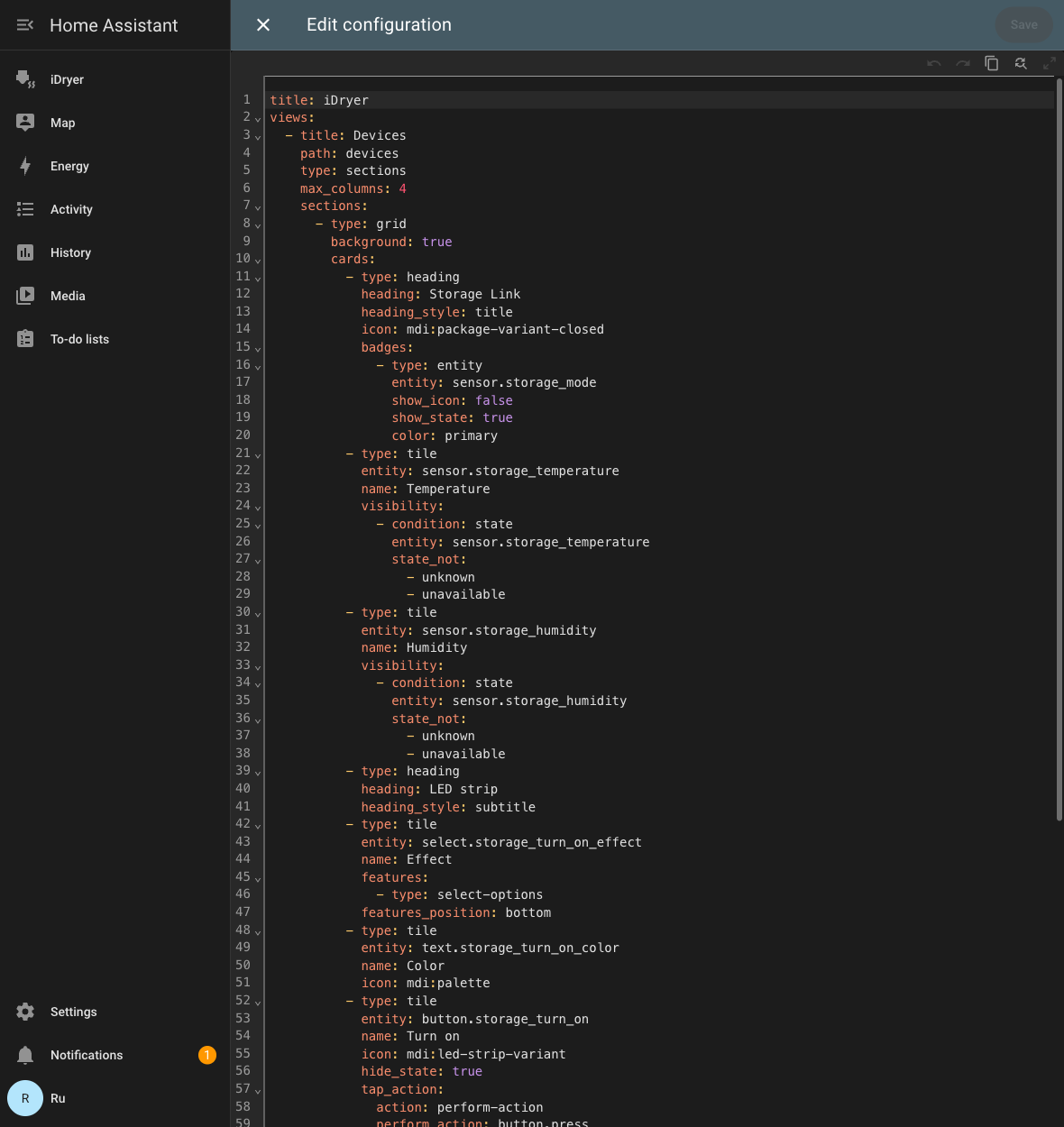 The same layout in the dashboard configuration editor.
The color is set as a string in the Color field — a six-digit HEX without the hash, for example FF8800. The animation is picked from a list that the device publishes itself: older Storage firmware has fewer options.
If the entity names do not match
The layout is designed for standard identifiers of the form sensor.storage_temperature. If the card shows "Entity not found", look up your own: Settings → Devices & services → MQTT → your device → the entity list — and replace the prefix in the layout with yours.
Troubleshooting
| Symptom | What to check |
|---|---|
| The device did not appear in HA | On the portal the Home Assistant integration has the "Enabled" checkbox set, the broker address and port are correct. The device must be Online. |
| It appeared, but there is no temperature or humidity | The SHT31 sensor is not connected or does not respond: without the sensor the device does not publish these entities. |
| The buttons do not work | Check that the broker allows publishing to the idryer/# topics and that the device log has no authorization errors. |
Ghost entities with the value Unknown |
Retained messages from an earlier firmware are left over. Clear them: mosquitto_pub -h <broker> -t 'homeassistant/<...>/config' -n -r. |