Home Assistant
Link モジュールを搭載した乾燥機は、MQTT Discovery によって Home Assistant に自身を公開します。HA がエンティティ(チャンバーの測定値、乾燥および保管の開始用フィールド、ボタン)を自動的に作成します。ポータルは不要で、すべては自分の MQTT ブローカーを経由します。
以下では、連携の有効化、動作確認、そして本機がエンティティの羅列ではなく画像のように表示されるためのカードレイアウトを説明します。
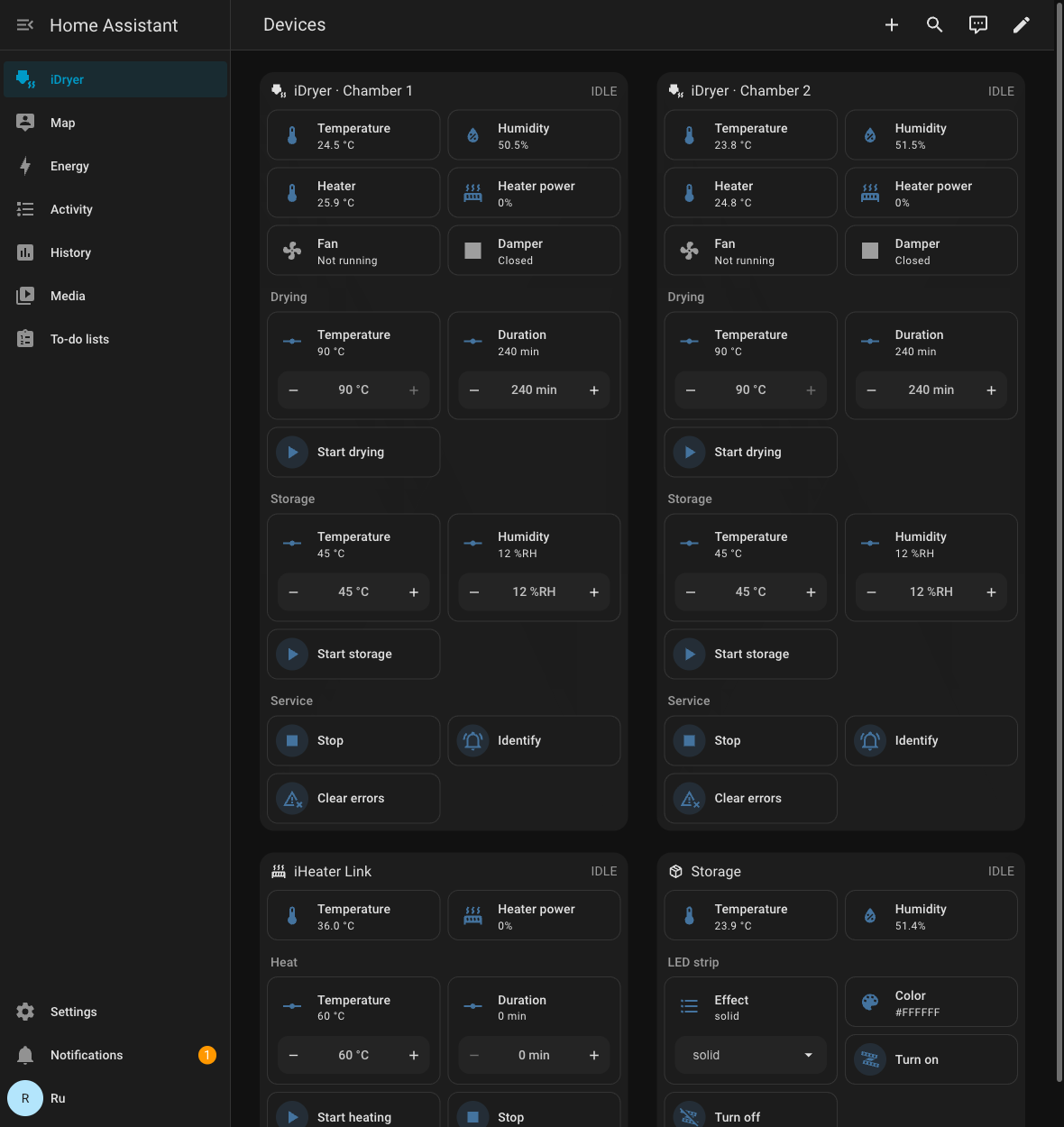 Home Assistant のダッシュボードに表示された乾燥機の両チャンバー: 測定値、乾燥と保管の開始、メンテナンス。
Note
デバイスは Settings → Devices & services → Discovered には**表示されません**。これは UPnP/zeroconf ではなく MQTT Discovery だからです。Home Assistant には MQTT 連携をあらかじめ追加しておく必要があります。
必要なもの
- MQTT ブローカー: Home Assistant のアドオン Mosquitto broker、またはネットワーク内の任意のブローカー。
- Home Assistant に、そのブローカーを指す MQTT 連携が追加されていること。
- Link モジュールを搭載した乾燥機がネットワークに接続され、ポータル上で
Onlineであること。
ステップ 1. 本機で連携を有効にする
portal.idryer.org でデバイスを開き、連携 → Home Assistant のブロックを表示します。
| 項目 | 入力する内容 |
|---|---|
| Host | ネットワーク内のブローカーのアドレス。例: 192.168.1.27 |
| Port | ブローカーのポート。通常は 1883 |
| Username / Password | ブローカーが要求する場合の認証情報 |
| Discovery prefix | HA の設定で変更していなければ homeassistant |
| 有効 | チェックを入れる。入れないと本機はブローカーに接続しない |
設定はローカルネットワーク経由で本機に直接送信されます。ポータルは保存しません。
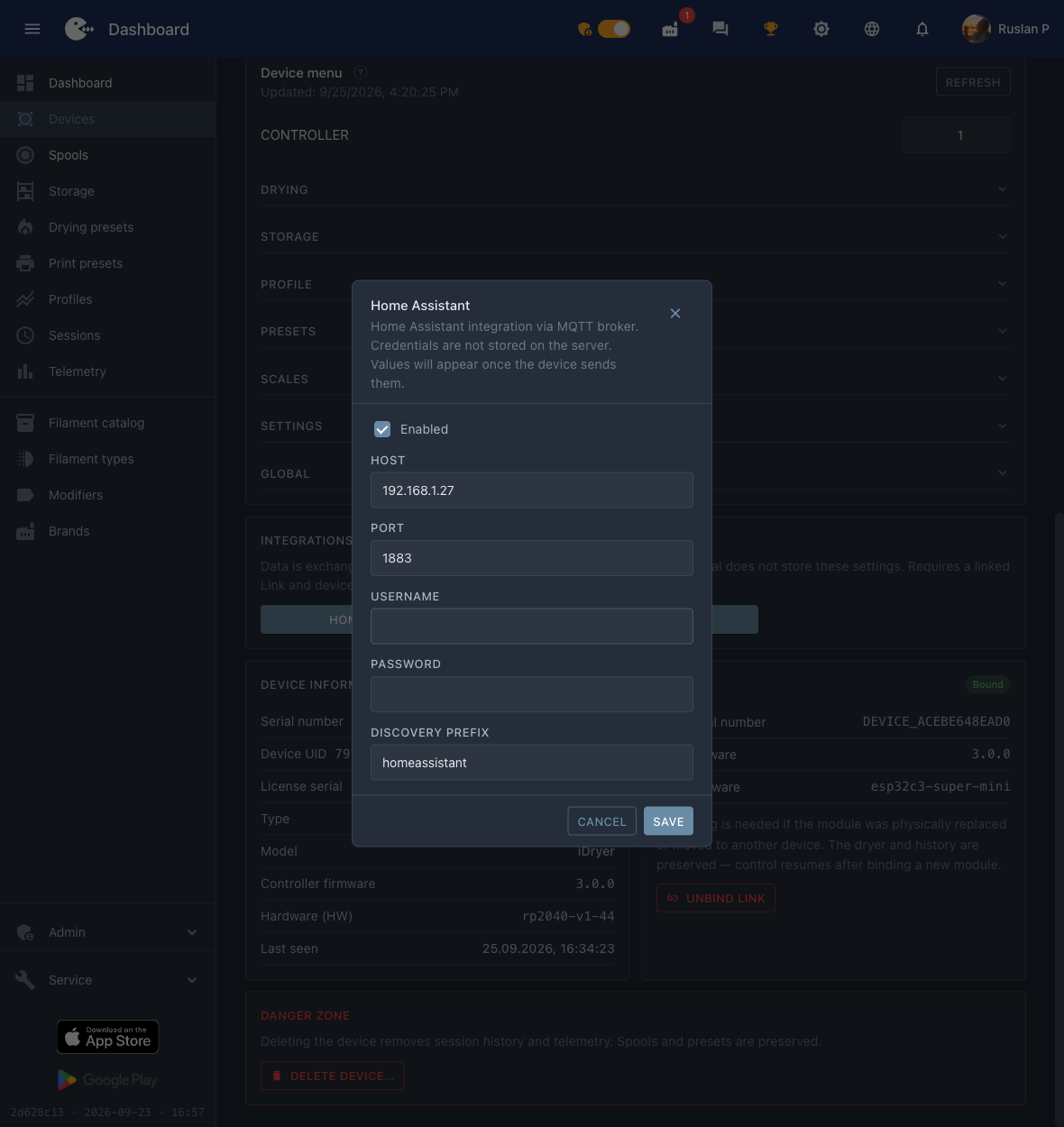 ブローカーのアドレス、ポート、「有効」のチェック — 本機に必要なのはこれだけです。
ステップ 2. Home Assistant でデバイスを探す
Settings → Devices & services → MQTT のカード → Services セクションでブローカーのノードを展開します。iDryer の機器は DEVICE_* 形式のシリアル番号で表示されます。
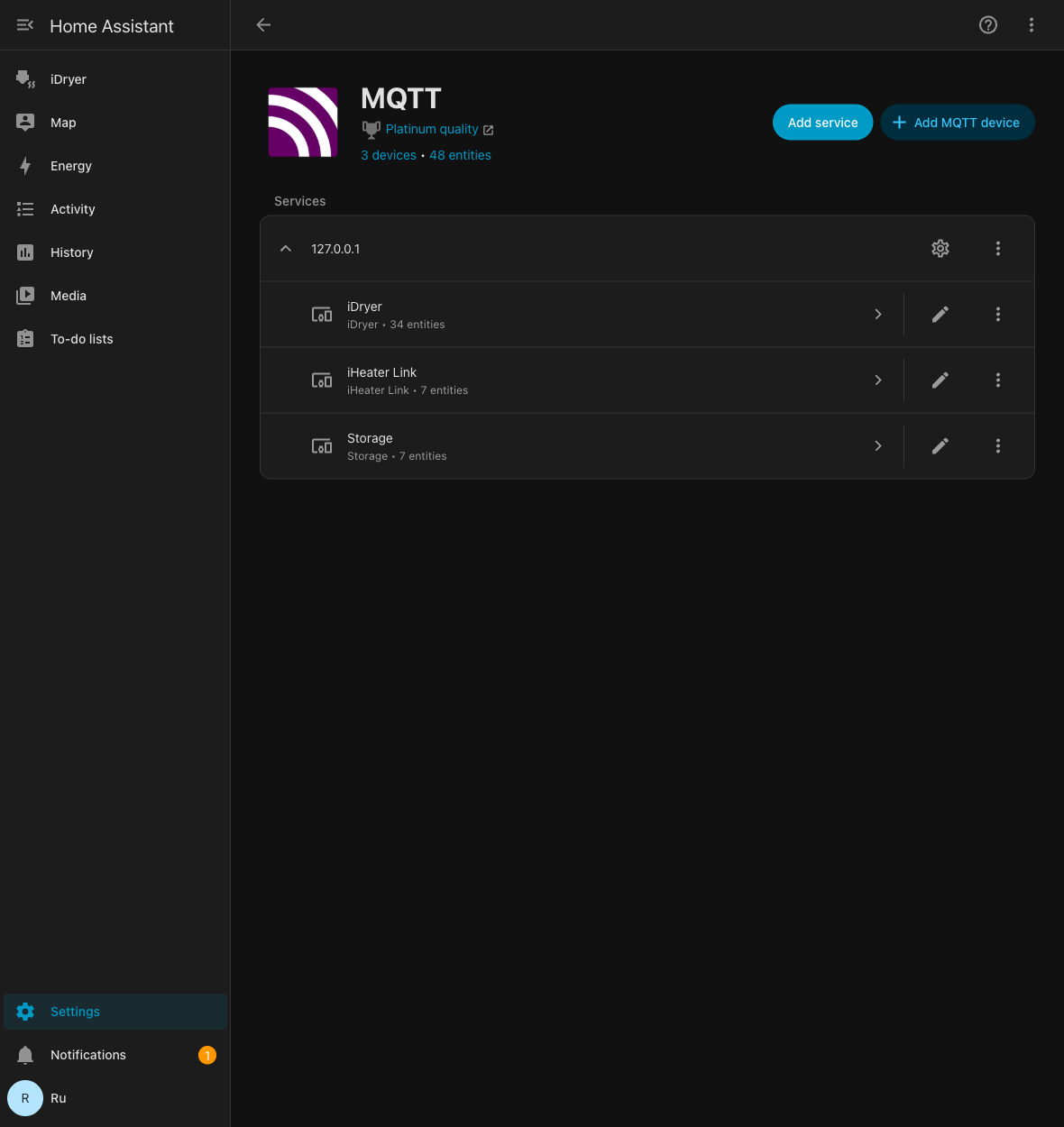 ブローカーのノード配下にあるデバイス。乾燥機にはエンティティ数が表示されます。
デバイスを開くと、HA にはすでに測定値と操作要素が表示されています。値が更新されているか確認してください。値は本機のテレメトリに合わせて更新されます。
ステップ 3. カードを作成する
HA はエンティティを自動で配置するため、長い一覧になってしまいます。用意されたレイアウトは、アプリと同じようにエンティティをグループ化します。測定値を上部に、続いて Drying、Storage、Service を配置します。
Settings→Dashboards→ Add dashboard → 空のダッシュボードを作成し、開きます。- 右上隅 → 鉛筆アイコン(Edit)→ 「⋮」メニュー → Raw configuration editor。
- 以下の内容を貼り付けて保存します。
このレイアウトは sections タイプのダッシュボードを前提としています。
title: iDryer
views:
- title: Devices
  path: devices
  type: sections
  max_columns: 4
  sections:
  - type: grid
    background: true
    cards:
    - type: heading
      heading: iDryer · Chamber 1
      heading_style: title
      icon: mdi:printer-3d-nozzle-heat
      badges:
      - type: entity
        entity: sensor.idryer_u1_mode
        show_icon: false
        show_state: true
        color: primary
    - type: tile
      entity: sensor.idryer_u1_temperature
      name: Temperature
    - type: tile
      entity: sensor.idryer_u1_humidity
      name: Humidity
    - type: tile
      entity: sensor.idryer_u1_heater_temperature
      name: Heater
    - type: tile
      entity: sensor.idryer_u1_heater_power
      name: Heater power
    - type: tile
      entity: binary_sensor.idryer_u1_fan
      name: Fan
    - type: tile
      entity: binary_sensor.idryer_u1_damper
      name: Damper
    - type: tile
      entity: sensor.idryer_u1_weight
      name: Spool weight
      visibility:
      - condition: state
        entity: sensor.idryer_u1_weight
        state_not:
        - unknown
        - unavailable
    - type: heading
      heading: Drying
      heading_style: subtitle
    - type: tile
      entity: number.idryer_u1_drying_temperature
      name: Temperature
      features:
      - type: numeric-input
        style: buttons
      features_position: bottom
    - type: tile
      entity: number.idryer_u1_drying_duration
      name: Duration
      features:
      - type: numeric-input
        style: buttons
      features_position: bottom
    - type: tile
      entity: button.idryer_u1_drying
      name: Start drying
      icon: mdi:play
      hide_state: true
      tap_action: &id001
        action: perform-action
        perform_action: button.press
        target:
          entity_id: button.idryer_u1_drying
      icon_tap_action: *id001
    - type: heading
      heading: Storage
      heading_style: subtitle
    - type: tile
      entity: number.idryer_u1_storage_temperature
      name: Temperature
      features:
      - type: numeric-input
        style: buttons
      features_position: bottom
    - type: tile
      entity: number.idryer_u1_storage_humidity
      name: Humidity
      features:
      - type: numeric-input
        style: buttons
      features_position: bottom
    - type: tile
      entity: button.idryer_u1_storage
      name: Start storage
      icon: mdi:play
      hide_state: true
      tap_action: &id002
        action: perform-action
        perform_action: button.press
        target:
          entity_id: button.idryer_u1_storage
      icon_tap_action: *id002
    - type: heading
      heading: Service
      heading_style: subtitle
    - type: tile
      entity: button.idryer_u1_stop
      name: Stop
      icon: mdi:stop
      hide_state: true
      tap_action: &id003
        action: perform-action
        perform_action: button.press
        target:
          entity_id: button.idryer_u1_stop
      icon_tap_action: *id003
    - type: tile
      entity: button.idryer_u1_identify
      name: Identify
      icon: mdi:bell-ring-outline
      hide_state: true
      tap_action: &id004
        action: perform-action
        perform_action: button.press
        target:
          entity_id: button.idryer_u1_identify
      icon_tap_action: *id004
    - type: tile
      entity: button.idryer_u1_clear_errors
      name: Clear errors
      icon: mdi:alert-remove-outline
      hide_state: true
      tap_action: &id005
        action: perform-action
        perform_action: button.press
        target:
          entity_id: button.idryer_u1_clear_errors
      icon_tap_action: *id005
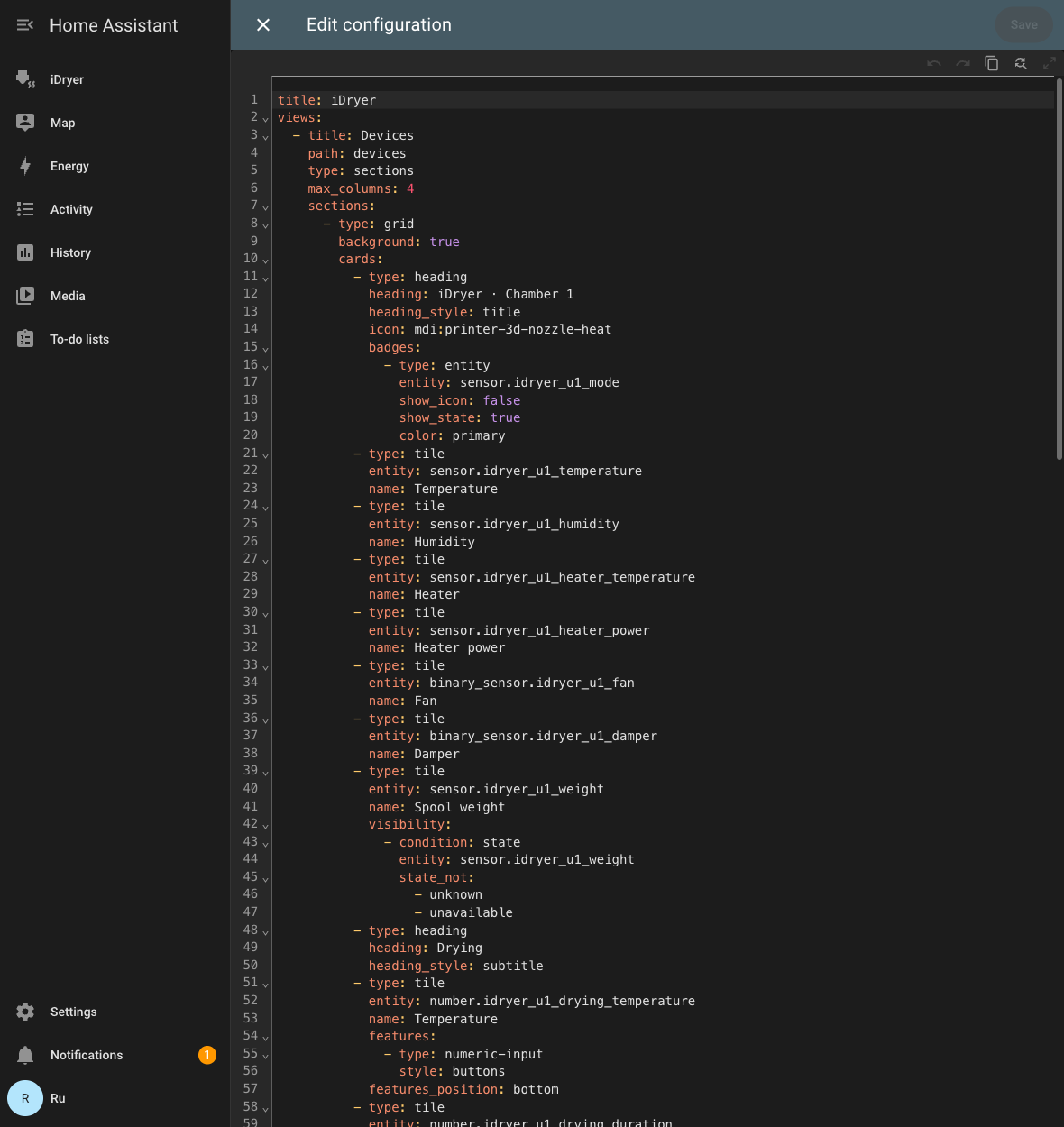 ダッシュボードの設定エディタに表示された同じレイアウト。
2 番目のチャンバー
2 チャンバーの乾燥機では、2 番目のチャンバーのエンティティ名は同じ形式で u2 が付きます(sensor.idryer_u2_temperature、button.idryer_u2_drying など)。- type: grid のブロックを丸ごとコピーして最初のブロックの後ろに貼り付け、その中の u1 を u2 に、見出しを iDryer · Chamber 2 に置き換えてください。2 つの列が並んで表示されます。
エンティティ名が一致しない場合
このレイアウトは sensor.idryer_u1_temperature のような標準的な識別子を前提としています。カードに「Entity not found」と表示される場合は、Settings → Devices & services → MQTT → 対象のデバイス → エンティティ一覧で実際の名前を確認し、レイアウト内のプレフィックスを自分のものに置き換えてください。
トラブルシューティング
| 症状 | 確認する内容 |
|---|---|
| HA にデバイスが表示されない | ポータルの Home Assistant 連携で「有効」にチェックが入っていること、ブローカーのアドレスとポートが正しいこと。本機は Online である必要があります。 |
表示されたが値が Unknown |
テレメトリの周期を待ってください。その後も空のままなら、ブローカーが retained メッセージを保持していないか、本機が接続できていません。 |
| ボタンが反応しない | ブローカーで idryer/# トピックへの publish が許可されているか、本機のログに認証エラーが出ていないかを確認してください。 |
値が Unknown のゴーストエンティティ |
以前のファームウェアの retained メッセージが残っています。次のコマンドで消去します: mosquitto_pub -h <ブローカー> -t 'homeassistant/<...>/config' -n -r。 |