Home Assistant
配備 Link 模組的乾燥機透過 MQTT Discovery 在 Home Assistant 中發布自己:HA 會自行建立實體——腔室讀數、啟動乾燥與保存的欄位、按鈕。這不需要入口,全部經由您的 MQTT 代理伺服器完成。
以下是啟用整合、檢查,以及現成的卡片版面配置,讓裝置呈現如圖所示的樣子,而不是一串實體清單。
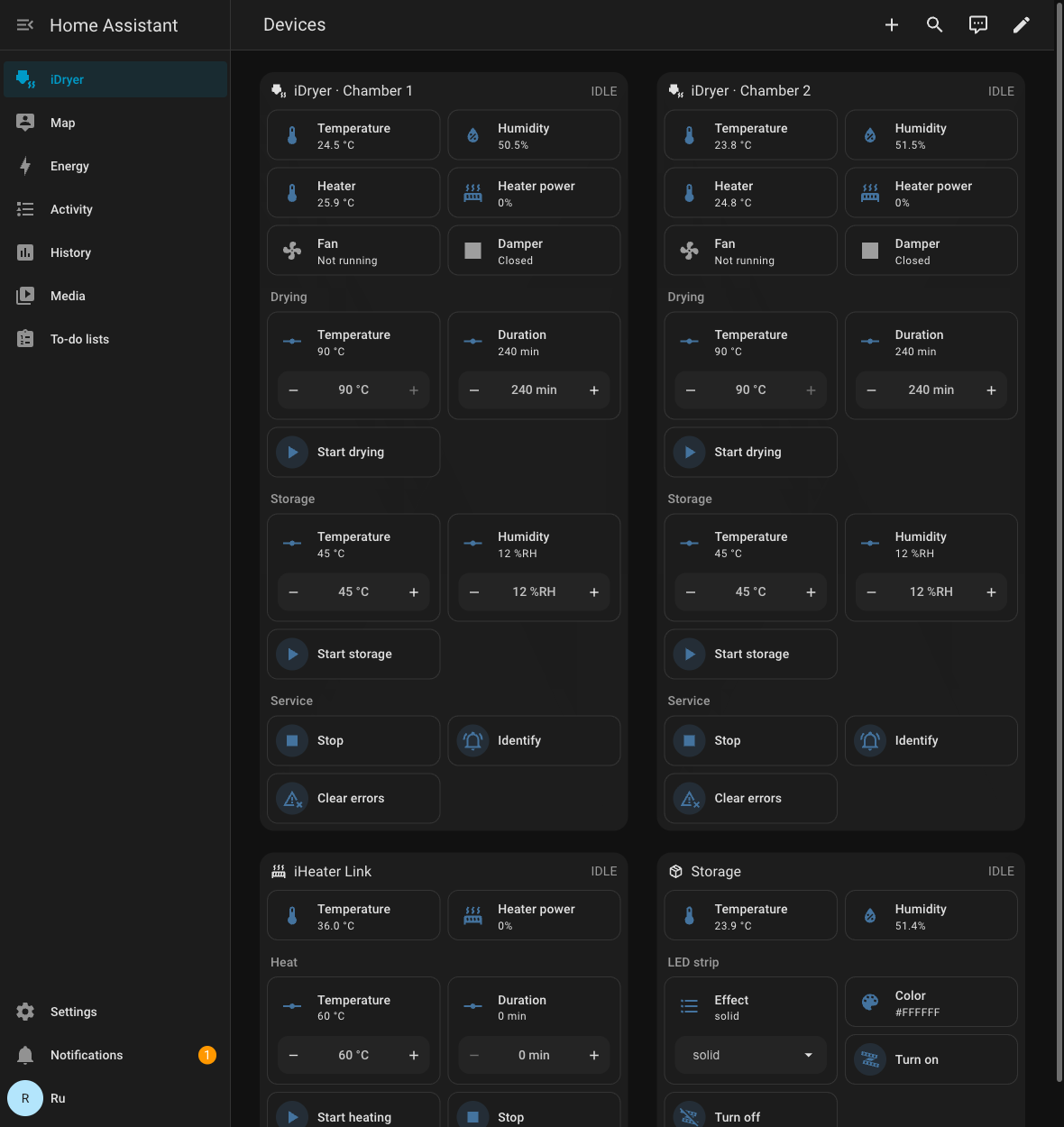 Home Assistant 面板上乾燥機的兩個腔室:讀數、啟動乾燥與保存、維護。
Note
裝置**不會出現**在 Settings → Devices & services → Discovered 中:這是 MQTT Discovery,而不是 UPnP/zeroconf。Home Assistant 中的 MQTT 整合必須事先新增。
需要準備什麼
- MQTT 代理伺服器:Home Assistant 中的 Mosquitto broker 附加元件,或您網路中的任何代理伺服器。
- Home Assistant 中已新增指向該代理伺服器的 MQTT 整合。
- 配備 Link 模組的乾燥機已連上網路,並在入口中顯示
Online。
步驟 1. 在裝置上啟用整合
在 portal.idryer.org 上開啟裝置,找到 整合 → Home Assistant 區塊。
| 欄位 | 填寫內容 |
|---|---|
| Host | 您網路中代理伺服器的位址,例如 192.168.1.27 |
| Port | 代理伺服器的連接埠,通常是 1883 |
| Username / Password | 代理伺服器的認證資訊(如果需要) |
| Discovery prefix | homeassistant,如果未在 HA 設定中更改過 |
| 啟用 | 勾選——否則裝置不會連接到代理伺服器 |
設定會透過本機網路直接送到裝置——入口不會保存這些設定。
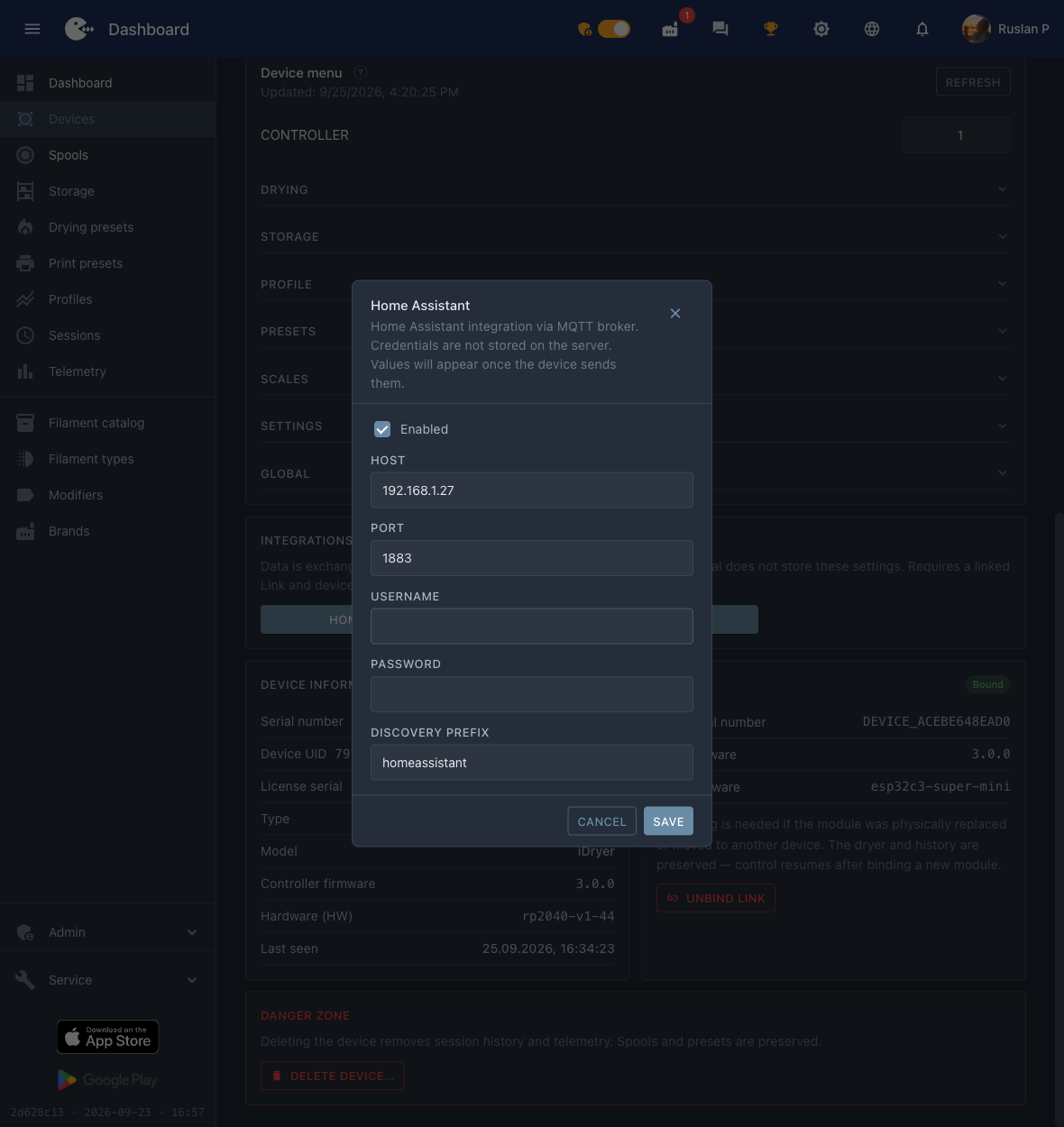 代理伺服器位址、連接埠和「啟用」標記——這就是裝置所需的全部內容。
步驟 2. 在 Home Assistant 中找到裝置
Settings → Devices & services → MQTT 卡片 → 在 Services 區段中展開代理伺服器節點。iDryer 裝置以 DEVICE_* 形式的序號顯示。
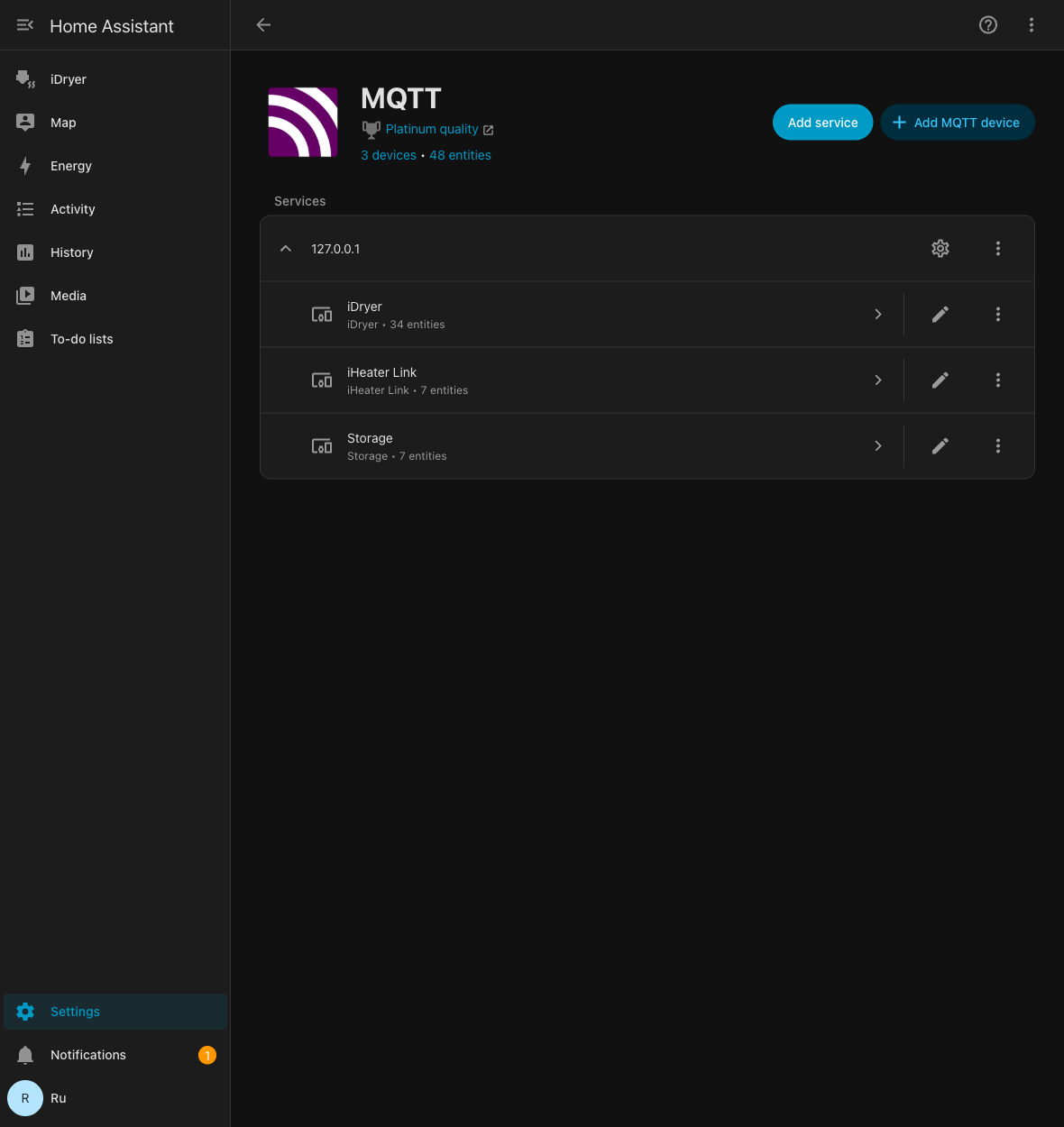 代理伺服器節點下的裝置;乾燥機處可看到實體數量。
開啟裝置:HA 已經顯示讀數與控制元件。請確認數值是即時的——它們會隨裝置的遙測一起更新。
步驟 3. 組建卡片
HA 會自行排列實體,結果是一長串清單。現成的版面配置將它們分組,方式與應用程式相同:讀數在上方,接著是 Drying、Storage 和 Service。
Settings→Dashboards→ Add dashboard → 空白儀表板,將其開啟。- 右上角 → 鉛筆(Edit)→「⋮」選單 → Raw configuration editor。
- 貼上以下內容並儲存。
該版面配置適用於 sections 類型的儀表板。
title: iDryer
views:
- title: Devices
  path: devices
  type: sections
  max_columns: 4
  sections:
  - type: grid
    background: true
    cards:
    - type: heading
      heading: iDryer · Chamber 1
      heading_style: title
      icon: mdi:printer-3d-nozzle-heat
      badges:
      - type: entity
        entity: sensor.idryer_u1_mode
        show_icon: false
        show_state: true
        color: primary
    - type: tile
      entity: sensor.idryer_u1_temperature
      name: Temperature
    - type: tile
      entity: sensor.idryer_u1_humidity
      name: Humidity
    - type: tile
      entity: sensor.idryer_u1_heater_temperature
      name: Heater
    - type: tile
      entity: sensor.idryer_u1_heater_power
      name: Heater power
    - type: tile
      entity: binary_sensor.idryer_u1_fan
      name: Fan
    - type: tile
      entity: binary_sensor.idryer_u1_damper
      name: Damper
    - type: tile
      entity: sensor.idryer_u1_weight
      name: Spool weight
      visibility:
      - condition: state
        entity: sensor.idryer_u1_weight
        state_not:
        - unknown
        - unavailable
    - type: heading
      heading: Drying
      heading_style: subtitle
    - type: tile
      entity: number.idryer_u1_drying_temperature
      name: Temperature
      features:
      - type: numeric-input
        style: buttons
      features_position: bottom
    - type: tile
      entity: number.idryer_u1_drying_duration
      name: Duration
      features:
      - type: numeric-input
        style: buttons
      features_position: bottom
    - type: tile
      entity: button.idryer_u1_drying
      name: Start drying
      icon: mdi:play
      hide_state: true
      tap_action: &id001
        action: perform-action
        perform_action: button.press
        target:
          entity_id: button.idryer_u1_drying
      icon_tap_action: *id001
    - type: heading
      heading: Storage
      heading_style: subtitle
    - type: tile
      entity: number.idryer_u1_storage_temperature
      name: Temperature
      features:
      - type: numeric-input
        style: buttons
      features_position: bottom
    - type: tile
      entity: number.idryer_u1_storage_humidity
      name: Humidity
      features:
      - type: numeric-input
        style: buttons
      features_position: bottom
    - type: tile
      entity: button.idryer_u1_storage
      name: Start storage
      icon: mdi:play
      hide_state: true
      tap_action: &id002
        action: perform-action
        perform_action: button.press
        target:
          entity_id: button.idryer_u1_storage
      icon_tap_action: *id002
    - type: heading
      heading: Service
      heading_style: subtitle
    - type: tile
      entity: button.idryer_u1_stop
      name: Stop
      icon: mdi:stop
      hide_state: true
      tap_action: &id003
        action: perform-action
        perform_action: button.press
        target:
          entity_id: button.idryer_u1_stop
      icon_tap_action: *id003
    - type: tile
      entity: button.idryer_u1_identify
      name: Identify
      icon: mdi:bell-ring-outline
      hide_state: true
      tap_action: &id004
        action: perform-action
        perform_action: button.press
        target:
          entity_id: button.idryer_u1_identify
      icon_tap_action: *id004
    - type: tile
      entity: button.idryer_u1_clear_errors
      name: Clear errors
      icon: mdi:alert-remove-outline
      hide_state: true
      tap_action: &id005
        action: perform-action
        perform_action: button.press
        target:
          entity_id: button.idryer_u1_clear_errors
      icon_tap_action: *id005
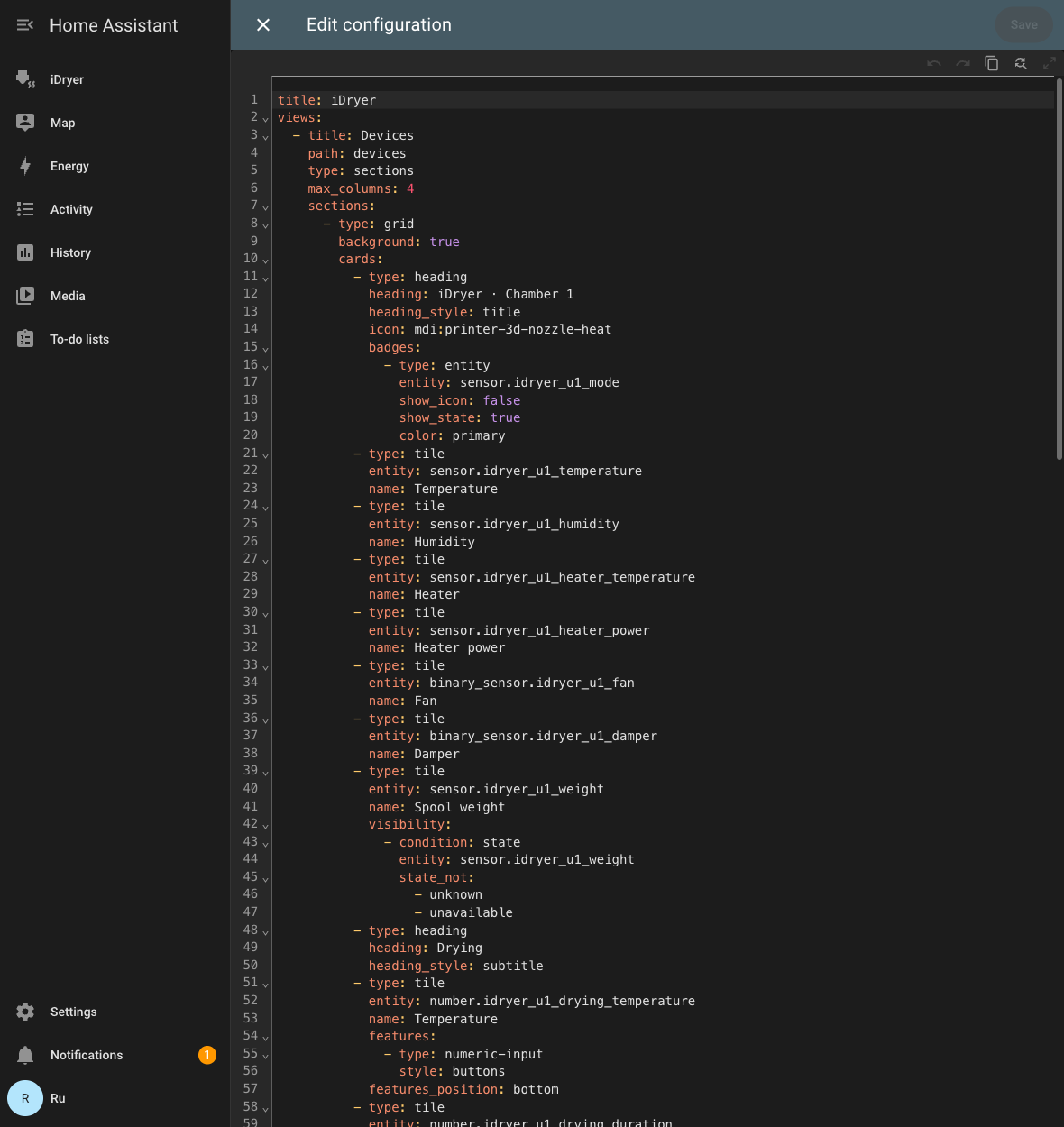 儀表板設定編輯器中的同一份版面配置。
第二個腔室
雙腔室乾燥機的第二個腔室,其實體名稱相同,但帶有 u2:sensor.idryer_u2_temperature、button.idryer_u2_drying 等等。整段複製 - type: grid 區塊,貼在第一個之後,並將其中的 u1 換成 u2,標題換成 iDryer · Chamber 2。這樣會得到並排的兩欄。
如果實體名稱不一致
該版面配置基於 sensor.idryer_u1_temperature 這類標準識別碼。如果卡片顯示「Entity not found」,請查看您自己的識別碼:Settings → Devices & services → MQTT → 您的裝置 → 實體清單,然後將版面配置中的前綴換成您自己的。
診斷
| 症狀 | 檢查內容 |
|---|---|
| 裝置未出現在 HA 中 | 入口中 Home Assistant 整合已勾選「啟用」,代理伺服器的位址與連接埠正確。裝置必須為 Online。 |
出現了,但數值為 Unknown |
等待一個遙測週期。如果仍然為空——代理伺服器不保存 retained 訊息,或裝置未連接到它。 |
| 按鈕沒有反應 | 檢查代理伺服器是否允許發布到 idryer/# 主題,以及裝置日誌中是否有授權錯誤。 |
數值為 Unknown 的幽靈實體 |
舊韌體遺留的 retained 訊息。清除方式:mosquitto_pub -h <代理伺服器> -t 'homeassistant/<...>/config' -n -r。 |